
Intro
This article covers the unique setup steps required for installing the Site Connect agent on a Windows server that hosts Office Practicum EHR.
If you have requested an install service with Datavant Site Connect team, we recommend you complete the General and ODBC Config sections prior to the scheduled install call.
If you chose to do self install, please complete the steps in all sections below.
General
- Office Practicum requires Firebird ODBC driver. This driver allows an ODBC connection to interbase file types, which is what Office Practicum uses. Install either the 32 bit or 64 bit driver here: https://www.firebirdsql.org/en/odbc-driver/
- Once installed navigate to ODBC Manager by searching windows for 'ODBC', choose the bit version that matches the server you are on.
-
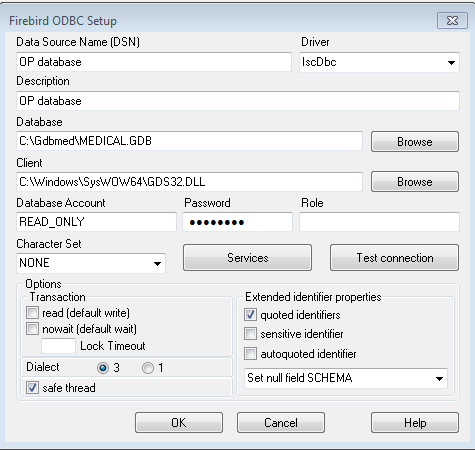
Go to 'User DSN' and click add, when prompted for a driver choose the Firebird driver you just installed. The below menu will then pop-up.
ODBC Config
- You will now see a screen like above, (NOTE: 'Driver' section will not be there, it uses iscDbc by default now) Fill in the configuration similar to how it is pictured above.
- Data Source Name: This is what will be put in as db_database in the Jump Agent.
- Description: Anything the practice wants
- Database: Search the server for their Gdbmed directory and find the
MEDICAL.GDBfile and use that. - Client: Differs based on 32 bit & 64 bit, 32 bit will be
C:\Windows\SysWOW64\gds32.dlland 64 bit will be C:\Windows\System32\fbclient.dllthis can vary depending on where Firebird was installed at, poke around and try differentgds32.dllfiles if you run into architecture mismatch error - Username/PW: If Office Practicum has created a DB account for the practice before it will likely be
READ_ONLYandR3AD0NLY. If these credentials do not work then the practice will have to ask Office Practicum to create a read-only database account for them.
- Test the ODBC configuration by hitting "test connection" if it succeeds proceed to fill out the Site Connect agent GUI.
Site Connect Agent
- In the Site Connect agent GUI, choose 'FileODBC' as the db_driver and then enter the data source name of the ODBC you just configured.
- No other fields are used because the Site Connect Agent will utilize the ODBC that was created. Nevertheless, we recommend you enter the Username and Password for future reference.